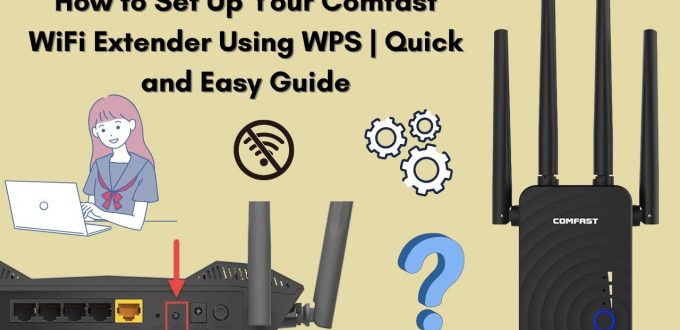
Setting Up Wireless Network Repeater Using WPS
Step 1 – Position the Comfast Repeater beside the Network Signal Access Point ( you can re position once synced)
Step 2 – Press and hold the WPS button on your home network (5 – 10 Seconds)
Step 3 – (Within 2 minutes) Press and hold the WPS button on the Comfast Repeater for 10 Seconds
Step 4 – Flashing blue lights on the WiFi signal will indicate the connection is being set up
Step 5 – Connect to the Comfast Network Repeater which will be named “Home Network”- PLUS
Step 6 – You will be required to create or enter the password for security purposes, only once.
Step 7 – Your WiFi Network Extender is set up, reposition as required.
Setting up Wireless Network Repeater using Simple Method
Step 1 – Connect to WiFi Signal COMFAST – XXXXXXX
Step 2 – Open the browser and type the IP address 192.18.10.1
Step 3 – Enter the default username and password – both are ADMIN
Step 4 – From a PC Select Repeater , smart phones won’t show this option
Step 5 – Repeater will scan for available signals
Step 6 – Select the signal you want to repeat
Step 7 – Enter the WiFi password of your wireless router
Step 8 – Wait 30 seconds while the repeater resets
Step 9 – Reconnect to the new wireless network and enter the password
Step 10 – You are all done – wireless signal should now be available after connecting. If not, hold down reset button for 30 seconds and start again.
Setting Up Access Point Instructions
Step 1 – Connect to Wireless Network COMFAST
Step 2 – Open your web browser and type in http://192.168.10.1
Step 3 – Enter username admin and password admin
Step 4 – Select “AP”
Step 5 – Set your New Network Name, Encryption Type and a new password in the Key field as below, then select “Apply”
or if you have a 2G and 5G Access Point
Step 6 – Wait for device to reboot.
Step 7 – Connect to the new wireless network you’ve named with the password you’ve set.
Step 8. You should be online, enjoy.
No Comments Yet